





Unmissable Games.
Serious Practice.
Infinite Fun.

Fun, interactive putting games for the whole family!
Puttfinity is a FREE iPhone app that transforms your AirBreak or AirBreak Max from golf’s best at-home practice mat into an interactive competitive arena for family and friends! Featuring 3 games and a Free Practice mode, your putting practice just got way more fun!

Explore The Puttfinity Games

Breaking 60
A thrilling race against time! Start with 60 seconds on the clock, and watch them tick away. Made putts give you time back, whilst misses eat away at those precious seconds!
See how long you can last and challenge your family & friends to beat your score!
Risk & Reward!
Standard putts earn steady time back, but Breaking 60 keeps you on your toes with high-stakes twists.

Golden Putt
Sink a golden putt and double the bonus seconds added to your time!

Pressure Putt
If you miss this putt you will lose 10 seconds off your time

Deadly Putt
Miss a deadly putt and, sorry, that's game over!

Penalty Shootout
This classic format sees two players face-off against each other for the chance to secure the bragging rights. Who can perform under the ultimate pressure?
5 putts each, winner takes all!

Hot Streak
Challenge yourself by seeing how many putts you can make in a row. Are you feeling red hot or ice cold?! Set your target streak and see how long it takes to nail it!
Need a little more challenge, or just feeling super confident? Just add a little break to the putt for that extra spice!

Free Practice
Hit putts to your heart’s content, and allow our ball-tracking technology paint an in-depth picture of your practice session with helpful, easily-digestible stats and graphics at your fingertips.
Get Ready For Puttfinity
Just a handful of things will get you playing in moments. Just check out below what you need and get putting!
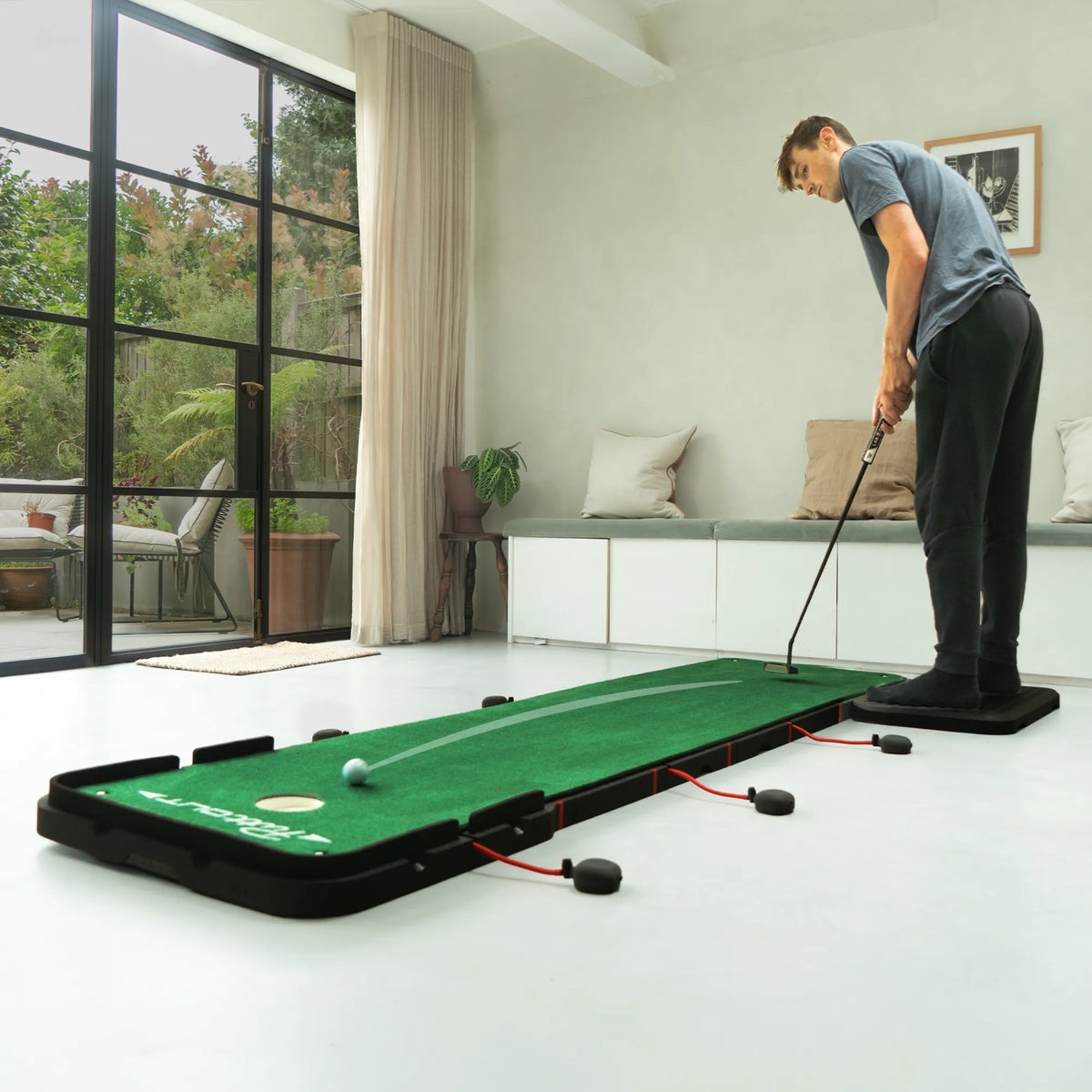
AirBreak or AirBreak Max
To use the Puttfinity app, you’ll need an AirBreak or AirBreak Max. Don’t have one yet? Find out more about AirBreak & AirBreak Max
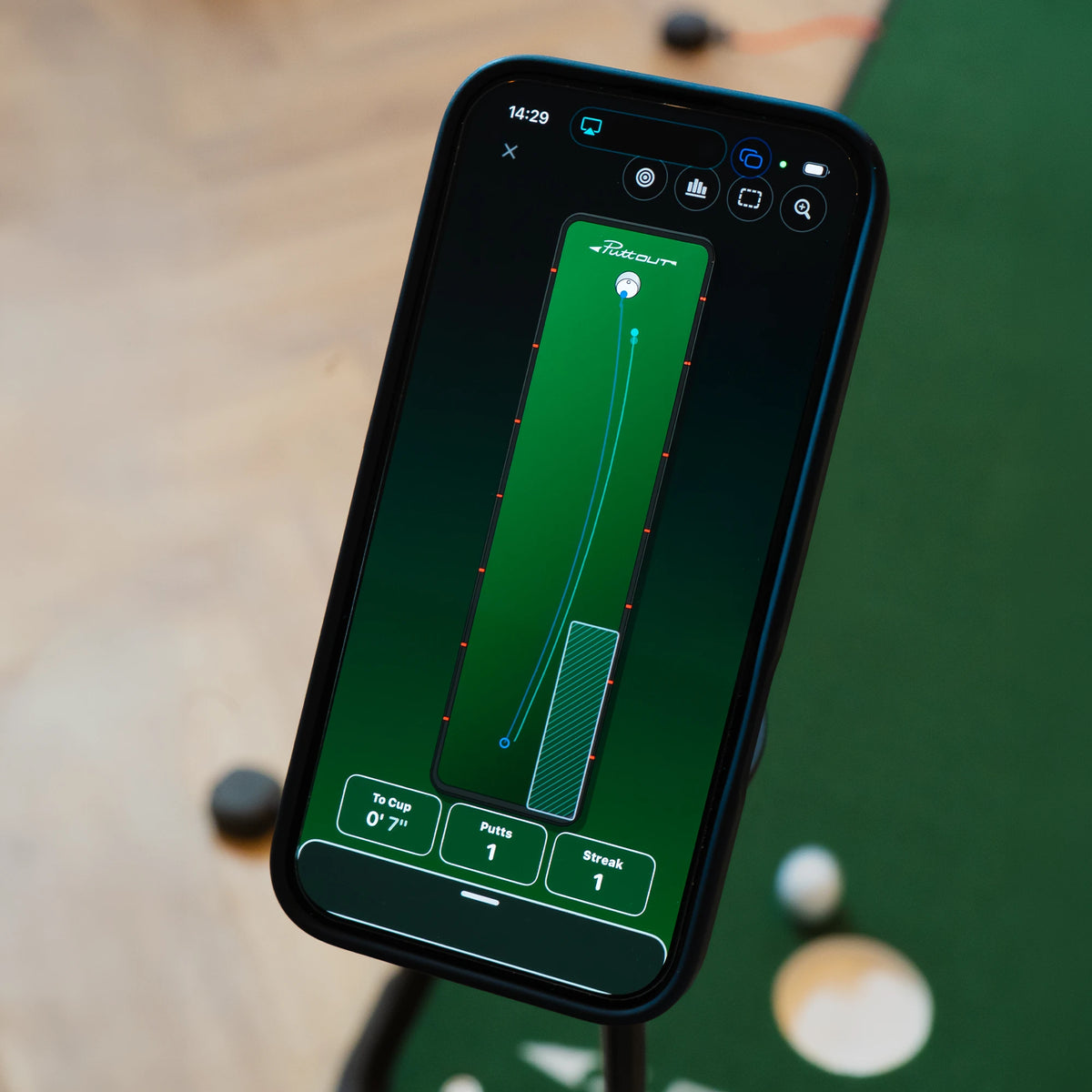
iPhone 14 or Newer
To play Puttfinity you will need an iPhone 14 or newer, running iOS 17 or newer. You will of course also need to download the App from the iOS App Store. Puttfinity will also work on iPad although it has not been optimised for these devices.
Puttfinity is currently only available on iOS with an Android version planned for 2027.
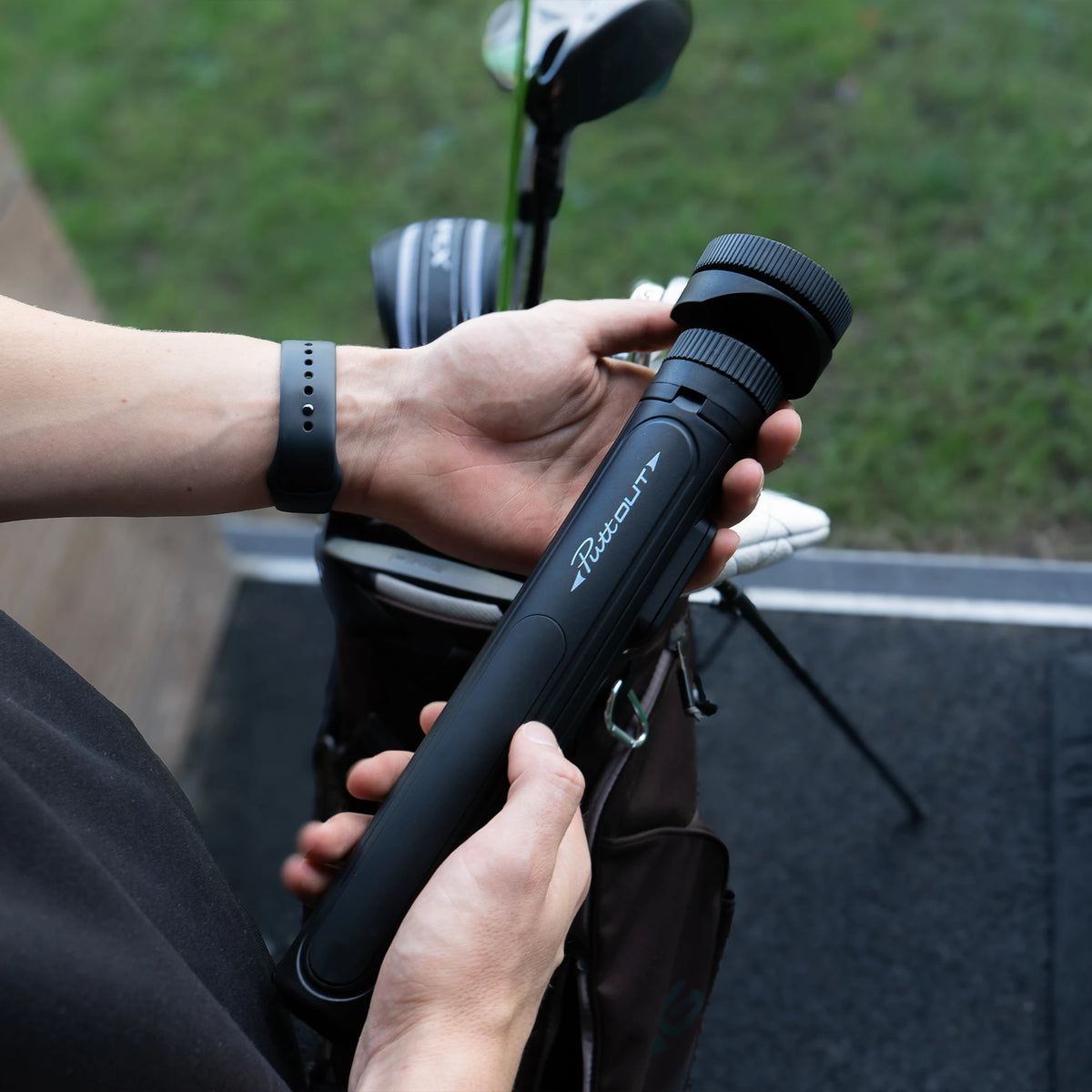
A Sturdy Tripod
Your iPhone needs to be mounted on a tripod while you use Puttfinity. You can use any suitable tripod that:
- Holds your iPhone securely in portrait orientation without obstructing its rear camera
- Angles the camera down so the entire AirBreak mat is visible
- Holds the camera at least 100 cm / 40 inches above the floor for AirBreak, or 120 cm / 48 inches for AirBreak Max
For stability, we recommend you use a tripod that has legs which are at least 20 cm / 8 inches long.
Don’t have a tripod? Our Puttfinity Tripod was made specifically for the task
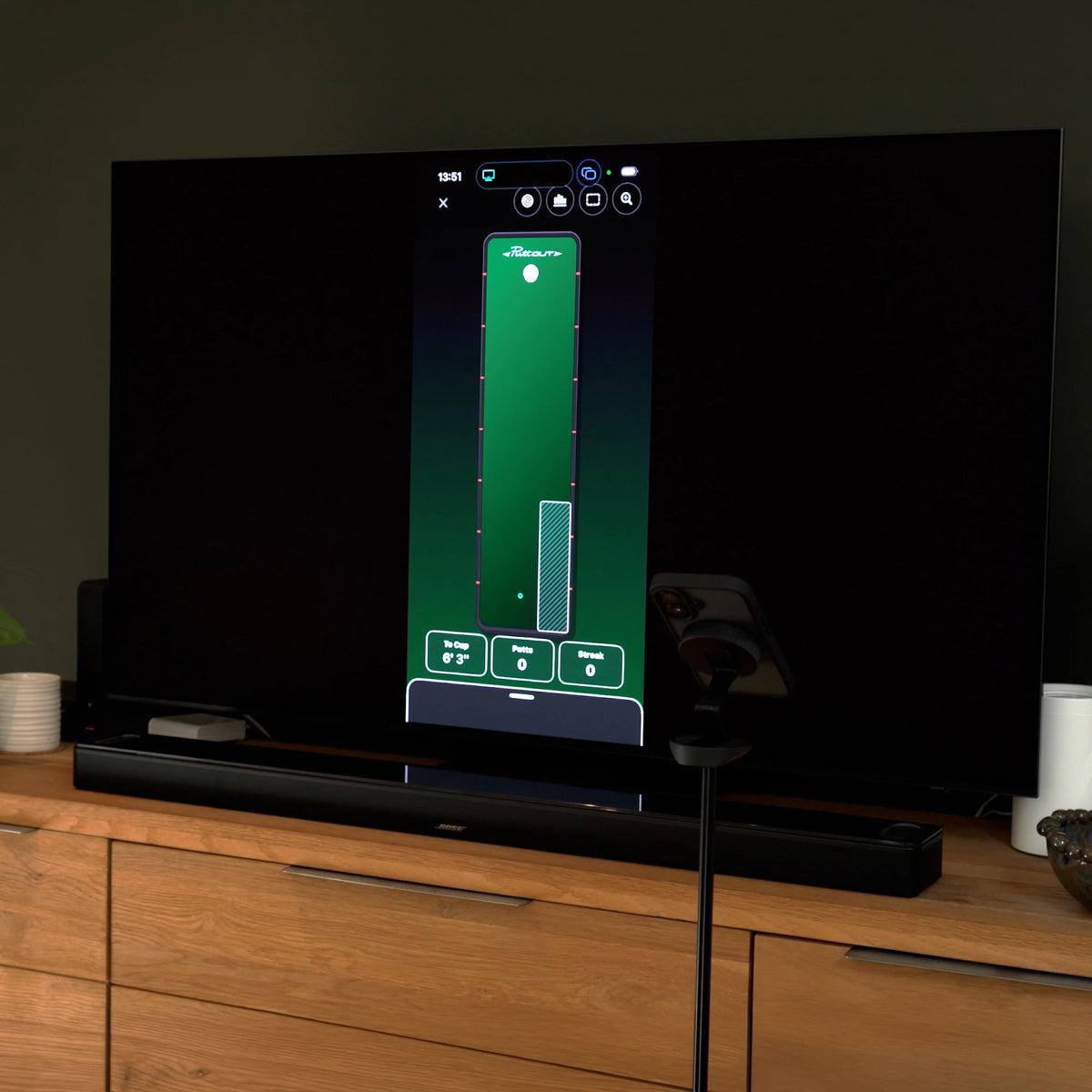
A Screen to Cast To
During play your iPhone screen will be facing away from you, so to see what is going on you need to cast your iPhone using Airplay or a cable to a secondary screen.
Some iPhones may have limitations when it comes to casting to a secondary screen via cable.
Puttfinity FAQs
How much does Puttfinity cost?
Puttfinity is FREE to use with an AirBreak or AirBreak Max. No subscriptions. No in-app purchases. No hidden fees. Just one more reason to keep practising.
What do I need to use Puttfinity?
You will need:
- An AirBreak or AirBreak Max
- An iPhone 14 or newer, running iOS 17 or newer
- A tripod that can extend 120cm/4ft off the floor and hold your iPhone
- A TV or other second screen that can display your iPhone’s screen
- Your putter and golf balls
- A brightly lit room
Will Puttfinity work with both AirBreak and AirBreak Max?
Yes. Puttfinity works with AirBreak and AirBreak Max.
Do I need to register my AirBreak?
You do not need to register your AirBreak. When you use Puttfinity, the app will automatically recognise your AirBreak or AirBreak Max each time you start a game.
Can I use Puttfinity with another putting mat?
Puttfinity is designed exclusively for AirBreak and AirBreak Max. It will not work with other putting mats, including other mats in the PuttOUT range.
Which iPhones are supported?
Puttfinity officially supports iPhone 14 and newer models, running iOS 17 or newer.
The app can be installed on older iPhones, but performance may be significantly reduced.
Can I use Puttfinity with an Android phone or an iPad?
Puttfinity is currently available for iPhone only. An Android version is planned for 2027.
Puttfinity can be used on an iPad but the content has not been formatted specifically for the iPad screen.
Why do I need a tripod?
Puttfinity uses the rear-facing camera on your iPhone to track a golf ball as it moves across the putting surface. This requires that your iPhone is positioned behind your AirBreak or AirBreak Max, with the rear-facing camera pointing down at the putting surface, so that all of your AirBreak is visible in the camera's field of vision.
Although it might be possible to position your iPhone appropriately on a table, shelf or other furniture, for most users a tripod will be the most practical way of getting your iPhone into the appropriate position.
Do I have to buy the Puttfinity tripod?
No. You can use any tripod as long as it:
- Holds your iPhone securely in a portrait orientation without obstructing its rear camera
- Allows the phone to tilt so that its rear camera points down towards the putting surface
- For AirBreak the tripod should hold the the iPhone at least 100cm / 40" above the ground
- For AirBreak Max the tripod should hold the the iPhone at least 120cm / 48" above the ground
For added stability, we recommend a tripod with legs that are at least 20cm / 8" long.
If you do not already own a suitable tripod, the official Puttfinity tripod has been designed for this purpose. The Puttfinity tripod is also great for capturing your full swing at the range or on the course. It is supplied with a Bluetooth remote for starting or stopping video capture.
Why do I need a TV?
To track your putts, your iPhone is positioned behind the cup(s) on your AirBreak or AirBreak Max, with its rear camera facing the putting area. This means the iPhone’s screen faces away from you while you play.
Displaying Puttfinity on a TV or other second screen allows you to see what is happening during games and practice. It also allows friends and family to follow the action.
How do I connect my iPhone to my TV?
You can cast your iPhone screen to your TV using AirPlay, which is supported by almost all TVs manufactured from 2019 onwards. Click the display icon in the bottom right corner of the Puttfinity home screen for instructions.
If your TV does not support AirPlay, you can plug your iPhone into an HDMI port on your TV (except the iPhone 16e and iPhone 17e, which do not support wired connections to external screens).
If you have an iPhone 15 or newer, you can connect the iPhone directly to your TV using a USB-C to HDMI cable.
If you have an iPhone 14 or an older, you will need Apple's 'Lightning to Digital AV Adapter' and an HDMI cable.
How much space do I need, and where does the phone go?
You will need enough space for your AirBreak or AirBreak Max, room to putt comfortably, and space behind the cup(s) for your iPhone and tripod.
Position the phone behind the cup, with its rear camera angled down towards the putting surface. The entire putting mat should be visible in the camera view.
The exact tripod position will depend on your phone, tripod height and AirBreak model. Follow the in-app setup instructions to position the camera before playing.
Do I need special golf balls or other accessories?
No. Puttfinity works with almost all regulation size golf balls. You do not need to attach anything to your ball or putter.
We recommend using white or yellow balls. Puttfinity should recognise golf balls of any colour but green golf balls can blend into the putting surface, while heavily patterned or multicoloured balls may be harder for the app to track reliably.
Can I play on my own and with other people?
Yes. Puttfinity includes solo practice, individual challenges and games to enjoy with family and friends.
Free Practice tracks your putts and provides feedback including make percentages, streaks and pace. Hot Streak challenges you to make consecutive putts, while Breaking 60 puts you under pressure against the clock.
For head-to-head competition, Penalty Shootout gives each player five putts, with sudden death if the scores are tied. Players can putt from different distances to make the contest more balanced between golfers of different abilities.
Multiplayer modes operate locally and Puttfinity does not support playing against other users over an internet connection.
We will continue to build and launch more games for Puttfinity in the coming months.
What if Puttfinity isn’t recognising my mat or tracking my putts?
First, check your camera position and lighting:
- Make sure the entire putting mat is visible, with some space around its edges.
- Check that the rear camera is unobstructed and angled down towards the mat.
- Use a brightly lit room with even light across the putting surface.
- Avoid strong shadows or a mixture of very bright and dark areas on the mat.
- Make sure your phone and tripod remain steady during play.
- Try a plain white or yellow golf ball if you are using a green, heavily patterned or multicoloured ball.
Follow the setup instructions again after adjusting your phone or mat. If you still need help, email us on contact@puttout.golf with your iPhone model and a description of what is happening.